
Browser-based AI photo editing
AI Beard Remover: Remove Beard from Photos Online
Upload a portrait and use AI to create a clean-shaven preview. BeardlessAI edits the beard area while using the rest of the face, lighting, and skin tone as visual context. Results are generated estimates, so they can vary from photo to photo.
Try the AI Beard Remover on Your Photo
Upload a clear portrait, review the removal prompt, and generate a clean-shaven version without leaving this page.
1. Upload a photo with visible facial hair
2. Review your clean-shaven preview
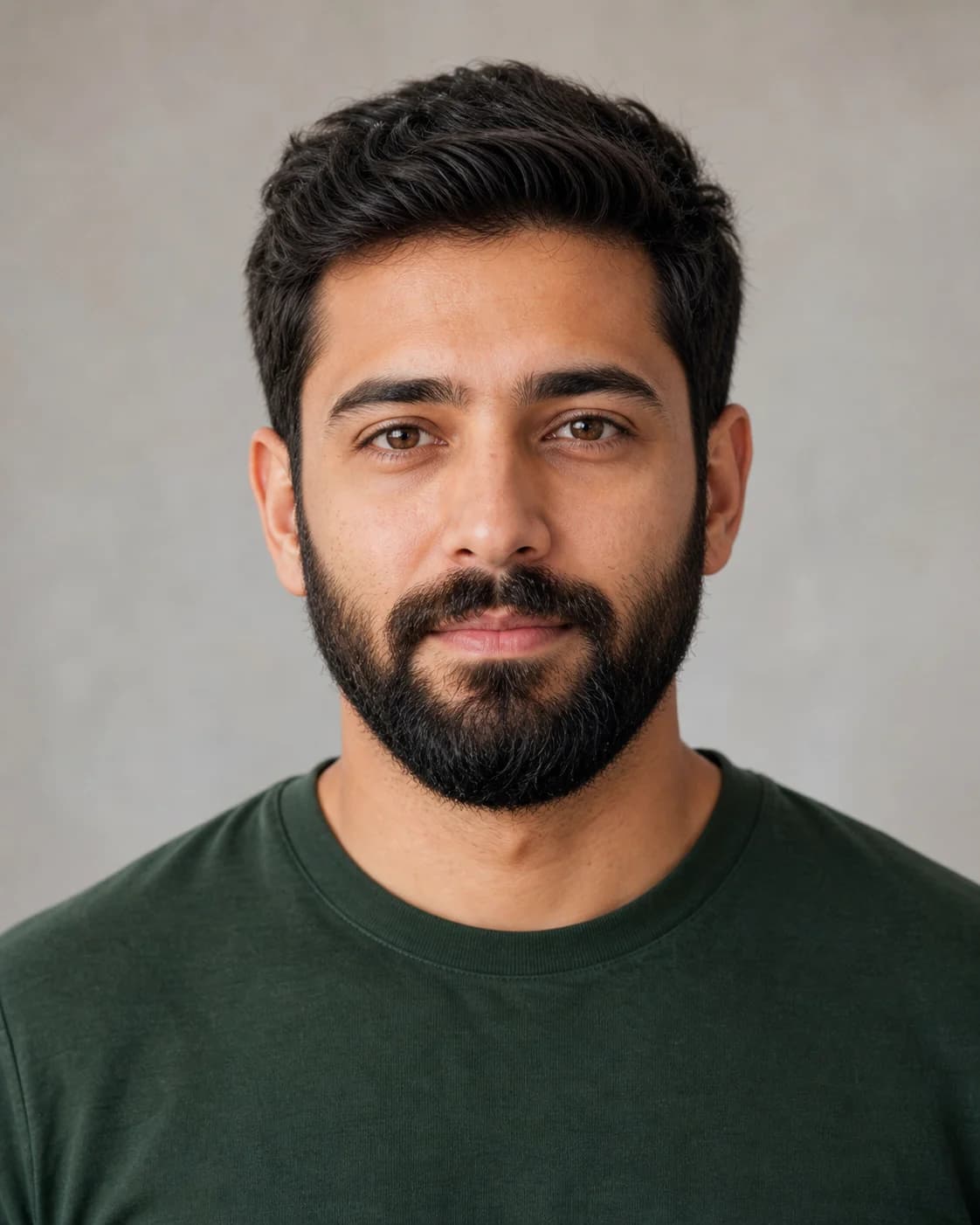
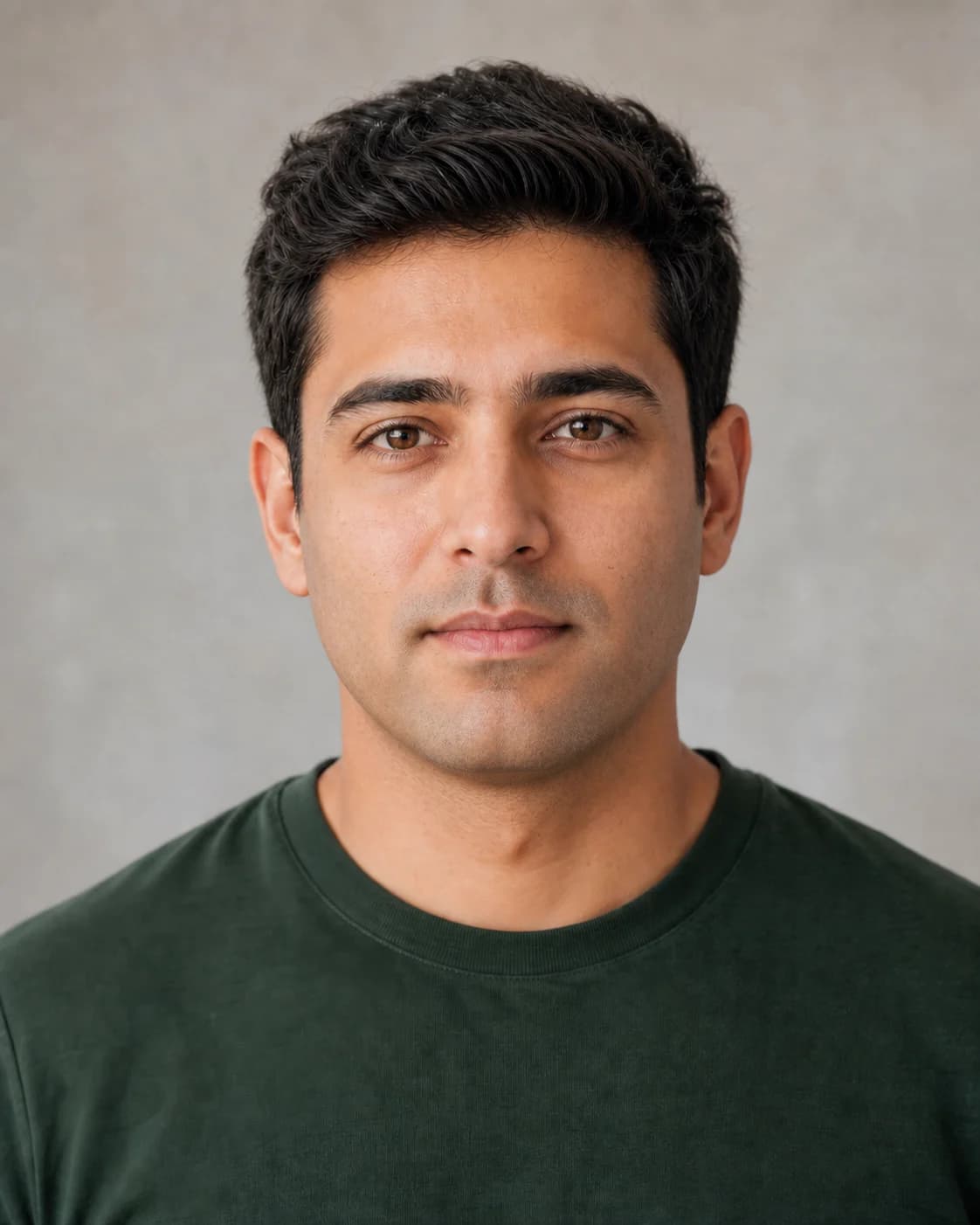
AI beard remover before-and-after example
This example shows the kind of visual change the tool is designed to create: facial hair is removed while the surrounding face remains recognizable. It is an illustrative sample, not a promise that every portrait will produce the same result.
Generated results depend on beard coverage, pose, lighting, image quality, and the wording of the prompt.
How Our AI Beard Remover Works
The tool combines a focused removal prompt with generative image editing. You stay on the same page for upload, generation, review, and download.
Upload Your Photo
Choose a clear portrait in a browser-supported image format. A front-facing or slightly angled photo works best when the cheeks, mustache, chin, jawline, and neck are visible. Avoid heavy shadows, hands, masks, or other objects covering the beard area.
AI Edits the Beard Area
The model uses the visible face and the removal prompt as context to generate a version without facial hair. Instead of manually cloning or smearing nearby pixels, it estimates how the covered skin and jaw area could look. Because this area is inferred, details may differ from the person’s real clean-shaven appearance.
Review and Download
Compare the generated preview with the source portrait. If the result is useful, download it from the result panel. If an edge, shadow, or mustache remains, adjust the prompt and try another generation; each new generation uses 6 credits.
Why Use an AI Beard Remover Instead of Other Editing Options?
Different methods suit different jobs. This comparison explains where a focused beard removal AI tool is convenient and where manual editing still offers more control.
| Option | Setup | Editing approach | Best for |
|---|---|---|---|
| BeardlessAI | Runs in a web browser; account required to generate | Prompt-based generative edit with a ready-made beard removal starting point | Fast style previews and straightforward portrait edits |
| Manual photo editor | Editing software and masking skills may be needed | The editor selects, paints, clones, and retouches each area by hand | Pixel-level control and complex professional retouching |
| Blur or clone tool | Available in many basic editors | Covers facial hair using nearby pixels without generating a complete new area | Small corrections where the underlying shape is already visible |
| Mobile filter app | Requires an app download and device permissions | Varies by app; may use a fixed filter or generative edit | Frequent mobile editing when an installed app is preferred |
AI Beard Removal vs. Traditional Photo Editing
Traditional retouching usually starts with a careful selection around the beard. An editor may clone nearby skin, paint texture, reshape shadows, and rebuild the edge of the lips or jaw. That can produce highly controlled work, but it takes time and depends heavily on editing skill—especially when a thick beard hides much of the lower face.
An AI-powered beard remover approaches the task as a generative edit. It considers the visible portrait and prompt, then creates pixels for the area where facial hair was present. This makes the workflow much faster for experimentation, but the hidden skin and jawline cannot be recovered from the source image as factual information. The output is an informed visual estimate, not a forensic reconstruction.
For a quick “what would I look like without a beard?” preview, AI is often the more convenient starting point. For commercial retouching, identity-sensitive documents, or an edit that must match reality precisely, review the result carefully and consider a professional editor.
What the Beard Remover AI Can and Cannot Do
A useful preview starts with realistic expectations. Generative editing can change visible facial hair, but it cannot reveal information that was never captured in the original photo.
Facial-hair coverage
The default prompt asks the model to remove a beard, mustache, and stubble. You can narrow that request, but a very dense beard, crossed hair, or beard-colored shadows can make the boundary less predictable.
Nearby facial details
The prompt asks the AI to keep identity, expression, hairstyle, clothing, background, and lighting unchanged. Even so, generative editing may slightly alter the lips, chin, jaw edge, skin texture, or nearby pixels.
Real appearance
The tool cannot know the exact skin, scars, face shape, or hair pattern hidden beneath facial hair. Do not treat the output as biometric evidence, an exact shaving forecast, or a guaranteed representation of the person.
Who Can Use an AI Beard Remover?
The most useful cases are exploratory and creative—situations where seeing an alternative look is more important than reproducing hidden facial details exactly.
Compare a clean-shaven look before shaving a full beard, goatee, or mustache in real life.
Explore whether a clean-shaven variation suits a résumé, portfolio, team page, or business profile.
Create an alternative look for a profile image while keeping the original photo available.
Prepare visual concepts, character references, or before-and-after ideas for personal content.
Explore how a bearded portrait might look without facial hair, while remembering that hidden features are AI-estimated.
How to Get a More Natural Beard Removal Preview
- Use a sharp portrait with even light across both sides of the face.
- Keep the mouth, chin, cheeks, jawline, and neck visible in the frame.
- Avoid strong beauty filters, motion blur, very low resolution, and deep beard shadows.
- Start with the default prompt, then describe any remaining mustache, stubble, or edge you want removed.
- Treat the first result as a preview and inspect the mouth, jaw, skin texture, and background before using it.
Credits, Sign-in, and Responsible Photo Use
Generating an image requires an account and costs 6 credits. A new account receives 10 trial credits, which is enough for one generation; additional generations may require more credits. Upload only photos you own or have permission to edit. Portraits can contain sensitive personal information, so review the privacy policy before submitting an image.
Continue Exploring Your Look
Beard removal is only one option. You can also compare other facial-hair styles or see additional generated examples before deciding what to try.
AI Beard Remover FAQ
Is this AI beard remover free?
BeardlessAI offers trial credits after you sign in. A new account currently receives 10 credits, and one beard removal generation costs 6 credits. That means you can try one generation with the initial trial balance. Continued use may require purchasing additional credits; current options are shown on the pricing page.
Do I need to sign up to remove my beard with AI?
Yes. The generation endpoint requires you to sign in before a photo can be processed. The account is used to manage trial and paid credits. You can read the page and review the example without an account, but uploading and generating a new result requires authentication.
Can AI remove a beard without making the photo look fake?
It can produce a natural-looking preview when the source image is clear and the beard area is well lit, but no AI result is guaranteed. A thick beard hides real skin, jaw, and shadow details, so the model must estimate them. Inspect the lips, chin, jawline, skin texture, and nearby background before using the image.
What is the difference between AI beard removal and a blur tool?
A blur tool softens existing pixels, which often leaves a visible patch and does not reveal a believable jawline. Generative AI creates new pixels using the face and surrounding image as context. That can look more coherent, but those new details are inferred rather than recovered from beneath the beard.
Can I remove only a mustache or stubble?
You can edit the prompt to request mustache-only or stubble removal while asking the tool to keep other facial hair unchanged. Prompt instructions guide the edit but do not guarantee exact masking, so review the result carefully. For a full clean-shaven preview, keep the default beard-and-facial-hair removal prompt.
Ready to Preview a Clean-Shaven Look?
Upload a clear portrait, keep or edit the removal prompt, and generate your AI beard removal preview on this page.
Try AI Beard Remover